Skip to content

Image to Prompt Generator

Use this free image to prompt generator to turn a reference photo or illustration into a reusable description of its subject, composition, lighting and style. Choose a target prompt style, then edit the result for your next image.

Your image

You can also paste an image from your clipboard.

Output settings

Turn visual details into a reusable image-generation prompt.

Additional instructions (optional)

0/1000

Completely free · No sign up required

Your image prompt

AI OUTPUT

Your next idea starts here.

Turn visual details into a reusable image-generation prompt.

AI OUTPUT

AI can miss details. Review and edit your result before using it.

Image links are imported through our server. Your image is sent for AI processing only when you generate a result. Images and results are not saved to an account.

How to Create a Prompt from Your Reference

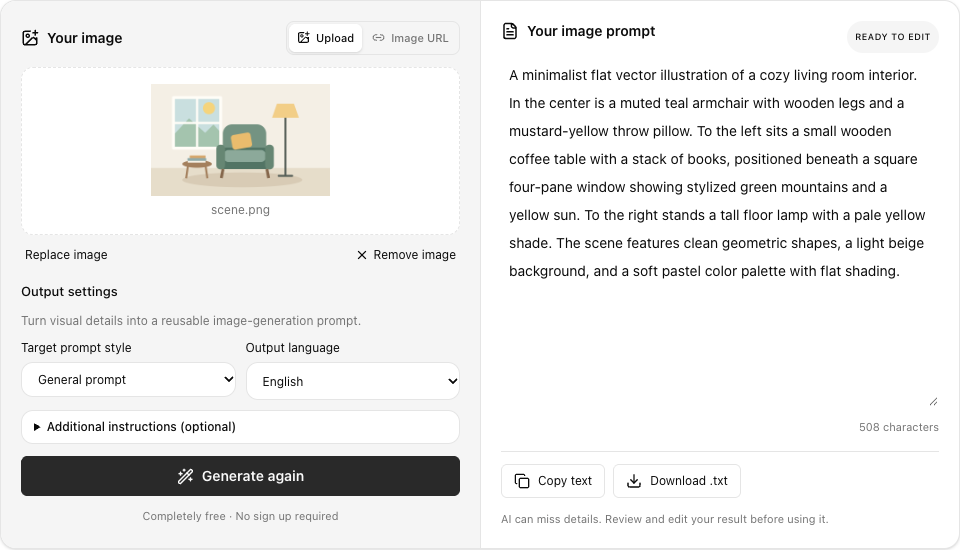
Choose a reference, set a prompt style and refine the result. The workspace preview shows a real image prompt generated from our reading corner illustration.

  1. Start with a reference

    Upload a JPG, PNG or WebP, paste an image, or import a public image link. Check the preview to confirm that the important subject and its surrounding details are visible before generating.

  2. Choose your direction

    Pick a target prompt style and output language. Add a note to focus on the details you want to keep, such as the color palette, lighting or framing, without requesting hidden model settings.

  3. Make it your own

    Read the generated prompt alongside your reference, then edit the details that matter to your next image. Copy the finished text into your image tool or download a TXT version for later.

Image prompt workspace with an uploaded reading corner illustration, General prompt style and a generated English prompt.

Image to Prompt Examples

Start with one of our reference images. The English results below were generated with this tool; your result may vary.

  • A quiet reading corner

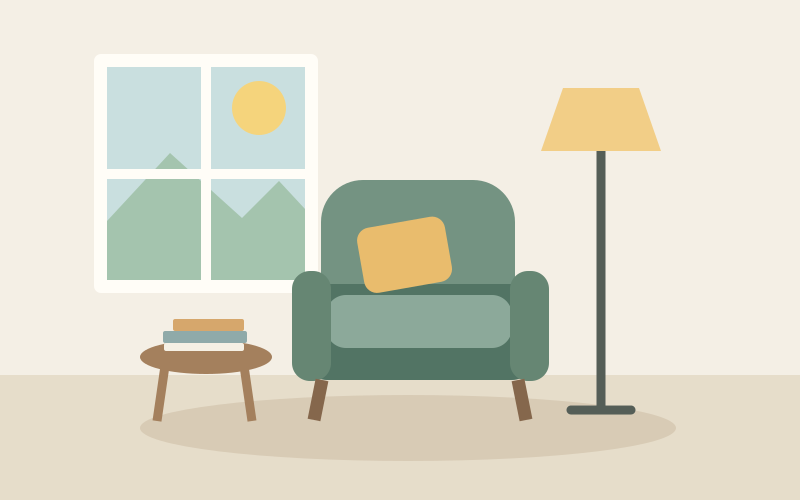
    Notice how the prompt connects the armchair, window and lamp into one composition. Keep those spatial relationships if the arrangement is the part you want to reuse.

  • A simple product composition

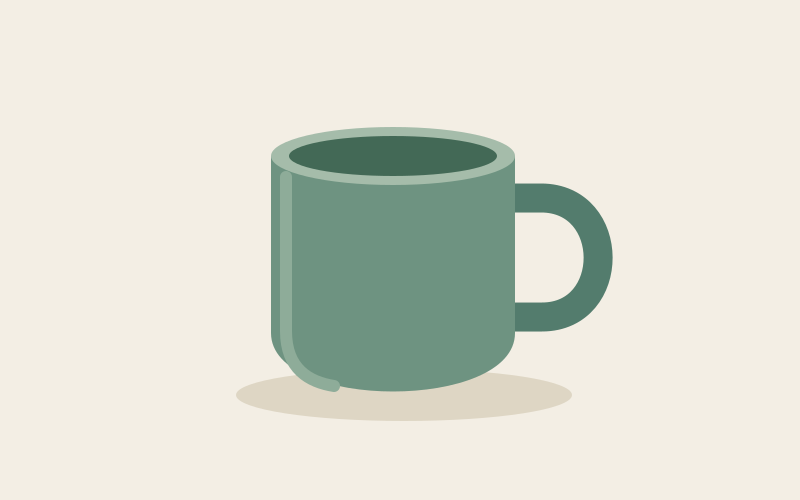
    This example focuses on the mug silhouette, muted green color and plain background. Change the material or background in the editable result to explore a different product composition.

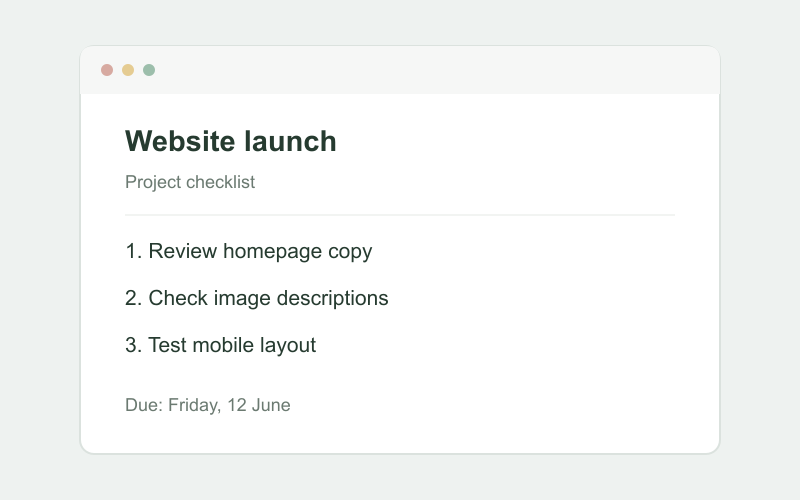
  • A clean checklist layout

    The result describes a visual layout rather than transcribing every line. Use the text extraction tool when you need the exact wording of a checklist or document.

Your image

Original illustration of a green armchair, yellow cushion and floor lamp.scene.png

Output settings

Turn visual details into a reusable image-generation prompt.

Completely free · No sign up required

Your image prompt

READY TO EDIT

Flat 2D vector illustration of a minimalist cozy living room, front-facing view. In the center, a sage green armchair with a yellow accent pillow sits on an oval rug. To the left, a small wooden side table holds a stack of books beneath a four-pane window showing stylized green mountains and a sun. To the right stands a tall floor lamp with a warm yellow shade. Clean geometric shapes, soft flat lighting, and a muted pastel color palette of cream, muted green, and soft yellow.

480 characters

AI can miss details. Review and edit your result before using it.

More Ways to Use Your Image Prompts

Keep the features you like, explore another composition, or prepare a clear starting point for your preferred image generator.

  • Keep the visual details

    Describe the subject, framing, lighting, colors and style in a prompt you can revise.

  • Work across image tools

    Choose natural-language prompts for Midjourney or Flux, or descriptive phrases for Stable Diffusion.

  • Build on a reference

    Use a reference as a starting point, then change the setting, materials or composition in the editable result.

Your image

Original illustration of a green mug on a cream background.product.png

Output settings

Turn visual details into a reusable image-generation prompt.

Completely free · No sign up required

Your image prompt

READY TO EDIT

A minimalist flat vector illustration of a muted sage-green coffee mug, centered against a solid cream background. The mug features clean lines, a simple cylindrical shape, a dark green interior, and a curved handle on the right. Beneath the mug is a soft, flat oval shadow. Modern graphic design style, smooth edges, matte color palette.

338 characters

AI can miss details. Review and edit your result before using it.

Getting More from Image to Prompt

A useful image to prompt workflow separates what you want to keep from what you plan to change. The suggestions below help you choose a reference, guide the analysis and refine the generated text without treating the result as an exact reconstruction.

Choose a reference with a clear visual direction

Start your image to prompt project with a clear subject and a specific visual direction. Choose a photograph for materials and arrangement, or an illustration for colors and drawing style. Simplify a busy reference before uploading when possible.

Adapt the wording to your image tool

The image to prompt settings adapt wording for General, Midjourney, Flux or Stable Diffusion. They do not switch the analyzing service. Choose a language you can edit, then add a short instruction about the lighting, framing or materials that matter.

Keep the visible details that matter

Review the image to prompt result alongside your reference. Check the subject, setting and composition before smaller details. Remove uncertain claims, and change the background or materials directly in the editable text when your next image needs a different direction.

Test one meaningful change at a time

Use image to prompt for controlled experiments: keep your first draft, then change one element such as viewpoint or lighting. Compare the results in your chosen image generator instead of assuming every service interprets the same words identically.

Understand what a reference cannot reveal

An image to prompt result cannot recover hidden prompts, seeds, checkpoints, LoRAs or editing history. It does not generate a new image or guarantee an identical reproduction. Check exact lettering and precise arrangements separately in your final creative tool.

Refine an incomplete or unfocused result

If image to prompt emphasizes the wrong feature, add a brief instruction or try a clearer reference. Stopped and incomplete results remain editable but need review. After a failed request, retry with the selected image, then copy or download your chosen text.

Image to Prompt Questions

It analyzes a reference and writes a new image-generation prompt describing its visible subject, composition, lighting, colors and style.

Ready to Create Your Image Prompt?

Start with a reference, choose your direction, and turn the visual details into text you can edit and reuse.

Generate image prompt

Completely free · No sign-up required