
Skip to content

Image to Text Converter

Use this free image to text converter to extract editable words from screenshots, notes and photos. Keep the original language, choose whether to preserve line breaks, and review the result before copying or downloading your text.

Your image

You can also paste an image from your clipboard.

Output settings

Transcribe visible text in its original language. Unclear text may need review.

Additional instructions (optional)

0/1000

Completely free · No sign up required

Your extracted text

AI OUTPUT

Your words, ready to use.

Transcribe visible text in its original language. Unclear text may need review.

AI OUTPUT

Small or blurry text may be misread. Check names, numbers and line breaks against your image.

Image links are imported through our server. Your image is sent for AI processing only when you generate a result. Images and results are not saved to an account.

How to Extract and Check Your Text

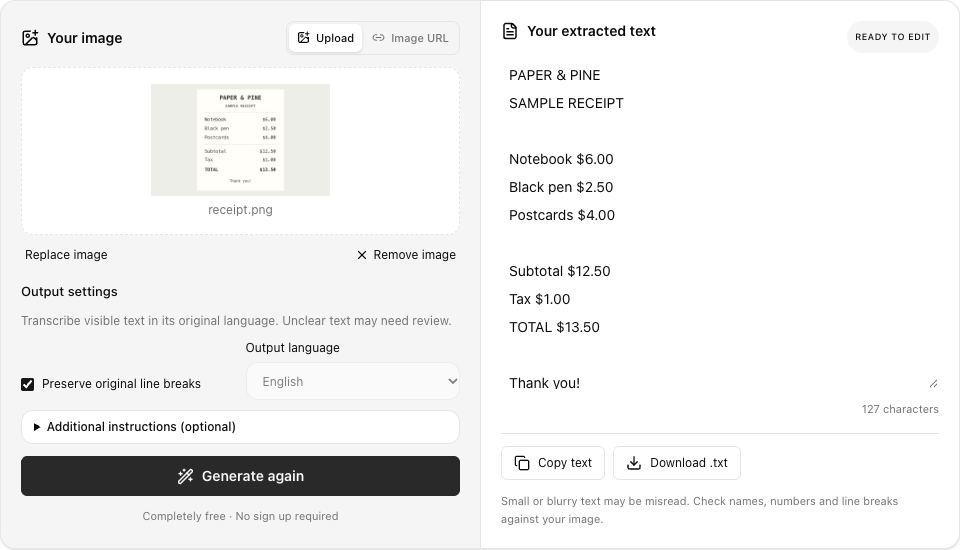
Choose an image with readable text, set your line break preference and check the transcription. This real receipt example keeps the source wording available for comparison.

  1. Choose an image with text

    Upload or paste a clear image, or import a direct image link. JPG, PNG and WebP are supported.

  2. Keep the original wording

    Choose whether to preserve line breaks. OCR retains the language visible in your image.

  3. Edit, copy and continue

    Review the transcription, correct anything unclear, and copy or download the text.

Text extraction workspace with an uploaded PAPER & PINE receipt, preserved line breaks and its English transcription.

Image to Text Examples

Start with one of our reference images. The English results below were generated with this tool; your result may vary.

  • A project checklist

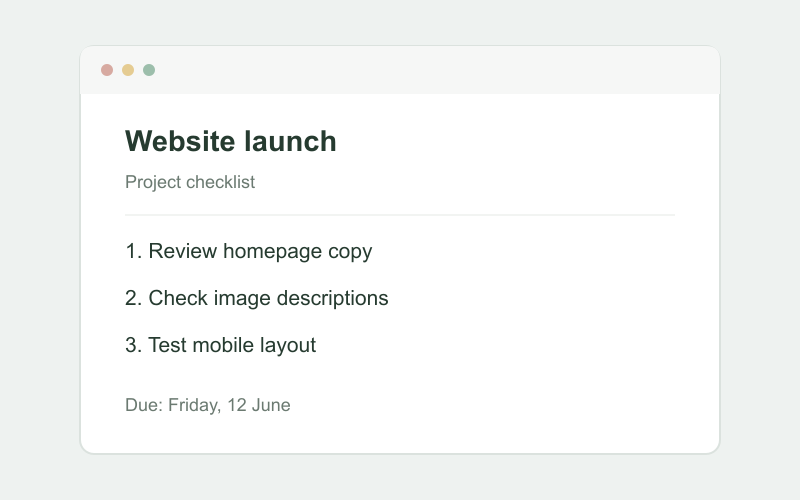
    Compare the checklist heading, numbered tasks and due date with the source. The line breaks make each item easy to review before you paste the text into your own notes.

  • A short supply receipt

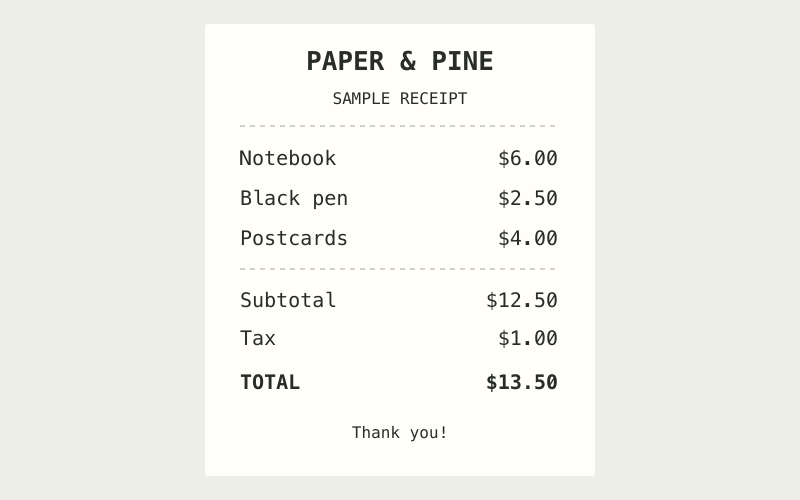
    Check the shop name, item prices, subtotal, tax and total independently. The example shows plain text transcription, with no claim to reproduce the receipt layout or verify its arithmetic.

  • A weekend reminder

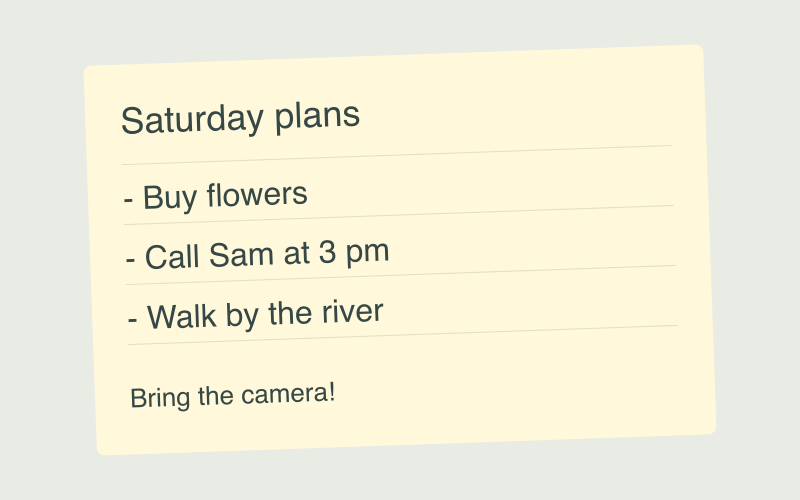
    This short reminder demonstrates why reading order matters. Compare each task and the camera reminder with the source before treating the extracted text as a finished checklist.

Your image

Original Website launch checklist with three tasks and a due date.screenshot.png

Output settings

Transcribe visible text in its original language. Unclear text may need review.

Preserve original line breaks

Completely free · No sign up required

Your extracted text

READY TO EDIT

Website launch Project checklist 1. Review homepage copy 2. Check image descriptions 3. Test mobile layout Due: Friday, 12 June

129 characters

Small or blurry text may be misread. Check names, numbers and line breaks against your image.

Put Your Extracted Text to Work

Move the useful words from a picture into your notes, messages or documents, with the original image available for checking.

  • Copy text from screenshots

    Extract a checklist, a short note or a block of text without typing it out again.

  • Read text from a photo

    Turn clearly printed text into an editable draft. Use a sharp, well-lit image for better legibility.

  • Keep the source language

    Transcribe what is visible without translating or rewriting. Unreadable text is marked for review.

Your image

Sample PAPER & PINE receipt listing a notebook, black pen, postcards and a total.receipt.png

Output settings

Transcribe visible text in its original language. Unclear text may need review.

Preserve original line breaks

Completely free · No sign up required

Your extracted text

READY TO EDIT

PAPER & PINE SAMPLE RECEIPT Notebook $6.00 Black pen $2.50 Postcards $4.00 Subtotal $12.50 Tax $1.00 TOTAL $13.50 Thank you!

127 characters

Small or blurry text may be misread. Check names, numbers and line breaks against your image.

Getting Clearer Image to Text Results

An image to text workflow works best when the source is readable and the result is checked against it. These practical tips cover screenshots, photographs and short documents, with attention to the details that are easy to overlook when moving text into another app.

Prepare a readable screenshot or photograph

Choose a sharp source for image to text conversion. Enlarge small lettering before taking a screenshot; photograph pages straight on, with even light and no glare. A larger file does not undo blur. This image to text tool accepts one static JPG, PNG or WebP within the displayed limits.

Choose whether line breaks should stay

The image to text converter can retain visible line breaks for checklists, addresses and notes. Disable that option for a more continuous transcription, then check paragraph boundaries. Preserving lines does not recreate a spreadsheet or page design. For receipts and columns, compare the reading order with the original before reuse.

Check names, amounts and similar characters

Treat image to text output as an editable draft. Check names, dates, prices and reference numbers first: one wrong character can change their meaning. Compare similar characters such as O and 0 against the source. The receipt example transcribes amounts without validating the purchase or checking the original arithmetic.

Move screenshots and photos into your workflow

Use image to text for a project checklist trapped in a screenshot or a reminder photographed on paper. A screenshot to text task and a photo to text task both produce reusable words. Review image to text results before combining them with other writing, then copy or download the edited version.

Keep transcription separate from translation

The image to text task keeps the source language; changing the interface does not translate it. Mixed language and unfamiliar lettering still need review. PDF uploads, multiple page scanning, handwriting guarantees and structured table export are not provided. When no readable text is present, the result can briefly say so.

Recover from unclear or incomplete text

If image to text misses a sentence, check the source and try a clearer crop. Processing can resize images, making tiny lettering harder to read. Long passages can reach the output limit. An incomplete result remains editable; check its ending before use. After a failure, retry without selecting the image again.

Image to Text Questions

Upload an image containing text, choose whether to keep line breaks, and select Extract image text. Review the result before copying or downloading it. Compare the first and last lines with the source so you can notice a missing heading or an unfinished ending. Use the editable result area to correct any characters you can clearly verify.

Ready to Extract Your Image Text?

Choose a clear screenshot or photo, preserve the wording you need, and take an editable version with you.

Extract image text

Completely free · No sign-up required