Start with a clear MP4 reference
The MP4 to prompt workflow accepts local files and public direct URLs. Trim long footage and check that subjects are easy to identify.

Image Describer
FREE · NO LOGIN REQUIRED
This free video to prompt generator turns scenes, subject motion, camera moves and style into editable text. Upload an MP4 or paste a direct video link, then choose a summary or storyboard.
Completely free · No sign up required
Keep the motion. Find the words.
Upload a short clip to describe what happens, how the camera moves and what gives the scene its look.
Review actions and approximate timings before using the prompt. A generated video may differ from your reference.
Local files stay in your browser until you generate; URL imports are downloaded and checked on our server. Only generating sends the video to AI. This tool does not save the video or result to an account.
Upload a reference, choose your output and generate. Local MP4 files and imported video file links follow the same workflow.
Choose an MP4 up to 10 MB and 60 seconds, or import a public file link. Check the preview before generating.
Use Summary prompt for one description, or Shot-by-shot prompts for separate action phases, even within a continuous take. Choose a language and add optional directions.
Compare the result with your clip, edit details and copy or download the text. Storyboard timestamps let you revisit each action in the reference.
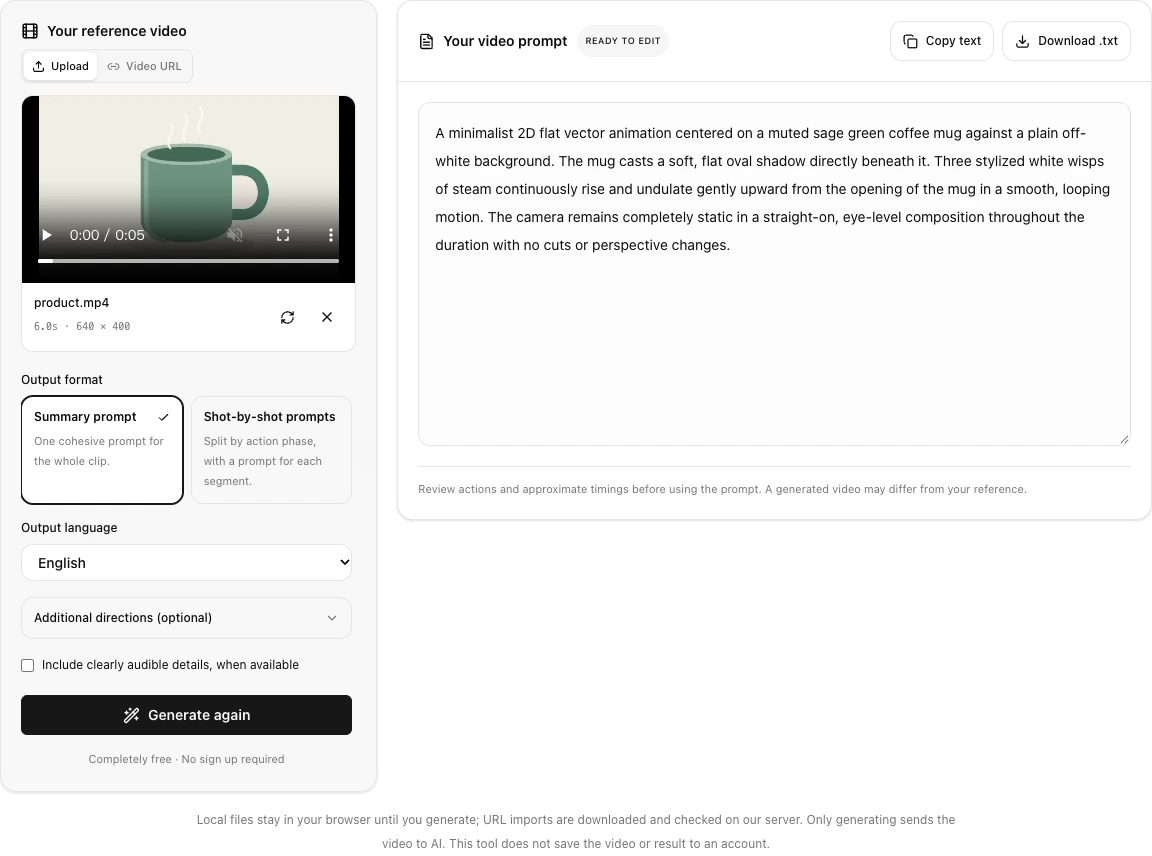
Explore real video to prompt examples below. Each original animation was analyzed with this tool; the English text is its actual generated output.
A fixed product shot with looping steam. See how the prompt describes the object, colors and motion above the rim.
Furniture stays still as warm light changes. Compare the generated setting, palette and atmosphere with the reference.
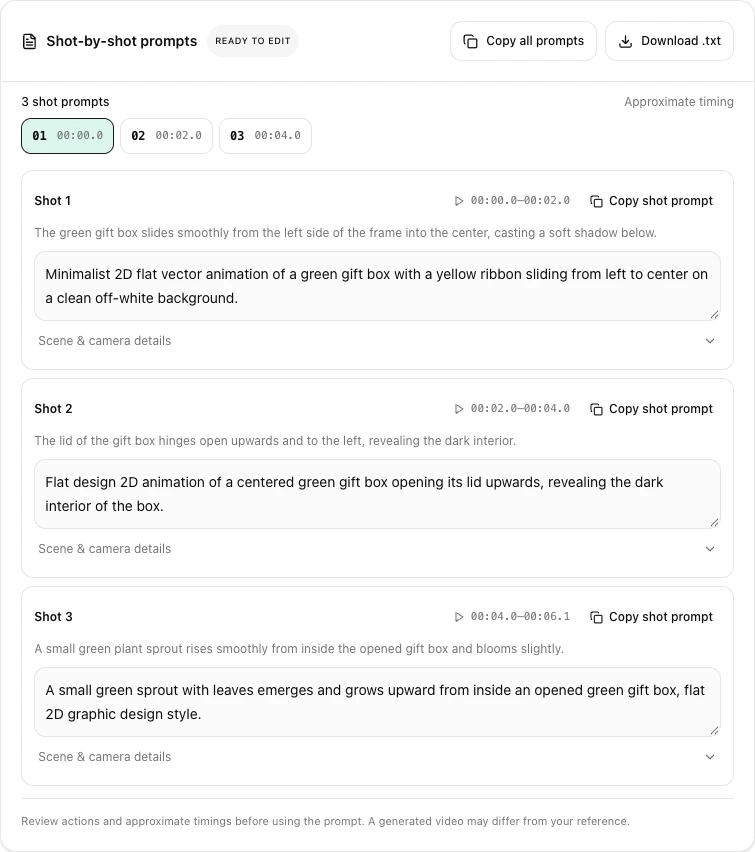
A gift box slides in, its lid opens and a plant emerges: three action phases within one fixed-camera take.
Original silent clips with real English AI outputs and approximate timings. Trying a sample prepares a preview; click Generate video prompt to analyze it.
Reference video
Short MP4 · Silent animation
Generated prompt
A minimalist 2D flat vector animation centered on a muted sage green coffee mug against a plain off-white background. The mug casts a soft, flat oval shadow directly beneath it. Three stylized white wisps of steam continuously rise and undulate gently upward from the opening of the mug in a smooth, looping motion. The camera remains completely static in a straight-on, eye-level composition throughout the duration with no cuts or perspective changes.
Reference video
Short MP4 · Silent animation
Generated prompt
A static, eye-level 2D flat vector animation depicts a minimalist, cozy living room in warm, muted pastel tones. In the center sits a teal armchair with a tilted yellow cushion. To the left is a small wooden side table holding a stack of books, positioned beneath a square window showing green mountains and a round yellow sun. To the right stands a tall floor lamp with a pale yellow conical shade. Throughout the shot, the camera remains motionless while a soft, translucent diagonal beam of sunlight shifts slowly across the chair and side table, creating gentle changing highlights before settling.
Reference video
6.1-second MP4 · Silent animation
Generated prompt
Shot 1 · 00:00.0–00:02.0
Minimalist 2D flat vector animation of a green gift box with a yellow ribbon sliding from left to center on a clean off-white background.
Shot 2 · 00:02.0–00:04.0
Flat design 2D animation of a centered green gift box opening its lid upwards, revealing the dark interior of the box.
Shot 3 · 00:04.0–00:06.1
A small green sprout with leaves emerges and grows upward from inside an opened green gift box, flat 2D graphic design style.
Video to Prompt can split a sequence into smaller pieces to inspect and reuse. Each segment includes approximate times, an action description and an editable prompt.
Separate an entrance, interaction and reveal when visible. One continuous shot can contain several phases; a still scene does not need artificial stages.
Click a timestamp to seek the video. Check what moves and whether the change comes from the subject or camera, then edit the prompt.
Copy a single prompt or download the full sequence. Expand scene and camera notes when you need the analysis behind a segment.
Get more from the video to prompt generator with a clear reference, the right output format and a quick review of the result.
The MP4 to prompt workflow accepts local files and public direct URLs. Trim long footage and check that subjects are easy to identify.
A person crossing a static frame differs from a camera following them. Compare direction, pace and framing to keep the movement accurate.
Choose a summary for the overall scene and style. Use storyboard mode for action changes or cuts you want to review separately.
Upload, generate, edit and copy without an account. Keep a downloaded copy of useful results: this tool does not store a personal history.
Adapt the text for Sora, Veo, Kling or Seedance. Set duration and aspect ratio in your chosen tool; no model-specific flags are added.
Check the video prompt text against the clip. Correct action order and remove uncertain details, particularly when gestures are fast or camera movement is subtle.
Start with an image, a video clip or a draft prompt. Pick the text you need next.
Put the scene, subject and visible details into words.
Open free toolTurn a reference image into a reusable AI art prompt.
Open free toolExtract editable text from photos and screenshots.
Open free toolWrite image descriptions for screen readers with page context.
Open free toolTurn a task or idea into a structured prompt for your AI assistant.
Open free toolRefine instructions and image prompts while keeping your original intent.
Open free toolStart with a still image and write a prompt for your next shot.
Open free toolIt means analyzing a reference video and describing its visible scene, action, camera behavior and style as a new, editable text prompt.
Yes. This video to prompt generator is completely free. No login required.
Use local MP4 files or public direct MP4 links, up to 10 MB and 60 seconds. Platform watch pages, playlists and live streams are unsupported.
YouTube watch links are unsupported. For a YouTube to prompt workflow, upload your own MP4 copy. This tool does not download YouTube videos.
Yes. Choose a summary or timed action phases. Edit each prompt, copy individual segments or download all the text; scene and camera notes are expandable.
Yes. Adapt the plain-language prompts in your chosen video tool and set its generation controls there. The output contains no model-specific flags.
No. It writes a new interpretation, without recovering hidden prompts, seeds or generation settings. Review the result; an exact match is not guaranteed.
Local files preview in your browser; URL imports download to our server. Clicking Generate sends the video to AI. Videos and results are not saved to an account.
Use the free video to prompt generator to describe your reference as one summary or a storyboard. Edit the result for your next idea.
Generate a video promptFree · No login required · MP4 upload or direct video link